Energy Manager Settings
These instructions are specifically for Flow Power customers. Please refer to the Amber Electric & LocalVolts settings for Amber Electric & LocalVolts customers, or Globird settings for Globird customers.
The settings that have come with the Energy Manager backup restoration may or may not be suitable for you. Whether they will be suitable for you will completely depend on your solar generation, your battery storage capacity, and your power consumption patterns.
Start with these defaults, but pay attention to how Energy Manager works for the first few weeks, as you will most likely have to tweak them to suit you. It will learn your power consumption pattern over time, and should have a good idea of your typical usage pattern over the first couple of weeks. The usage pattern will adjust along with your changed patterns during different seasons.
Energy Manager Settings Page
Select the PV menu on the left menu. Then click on the battery icon on the top tab.
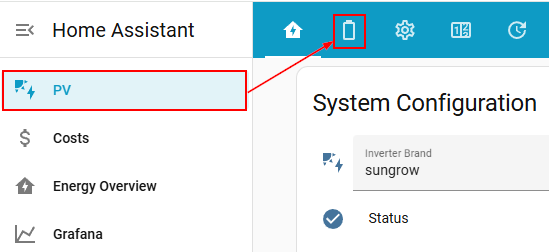
Peak Configuration
The are a few configuration settings that you should familiarise yourself with. Generally these will be a "Set-and-forget", but you may want to change them on occassion.
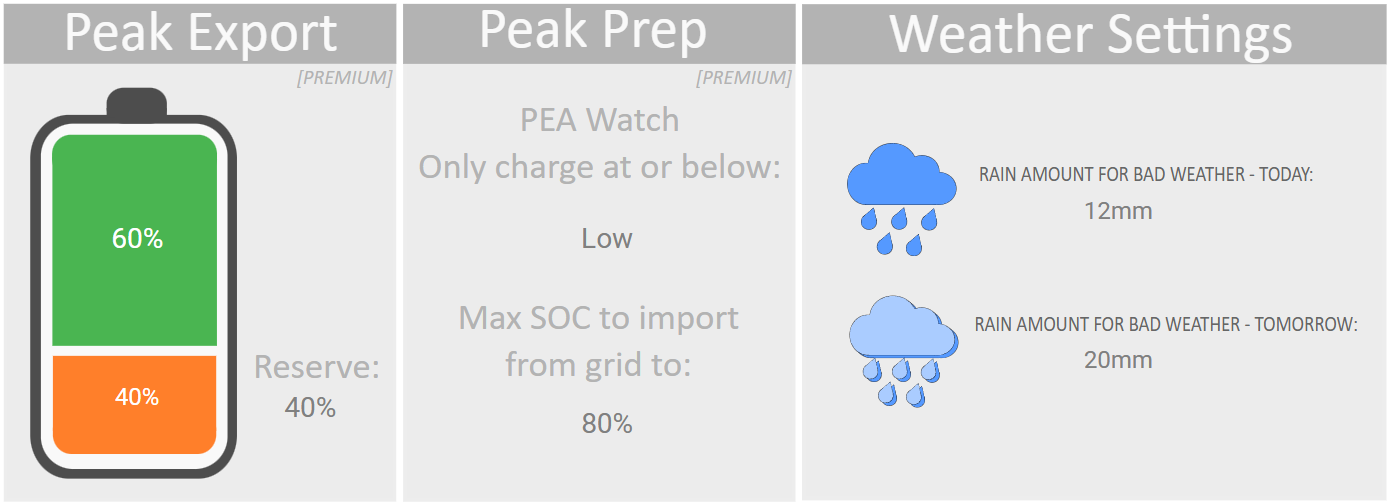
Peak Export
When the Peak Period comes, it is generally a good idea to export as much energy as you can so you can make the most of the higher feed-in-tariff, which depending on your location is generally either 25 or 45c/kWh. However, it may also be important for you to leave enough power for your use - especially since the peak period of two hours generally ends at 7:30pm, but the high-demand buy period will most likely continue on to midnight. So you want to be able to take from your battery at least until midnight. If you draw from the grid during this period, it is almost certain that you will negatively impact your PEA.
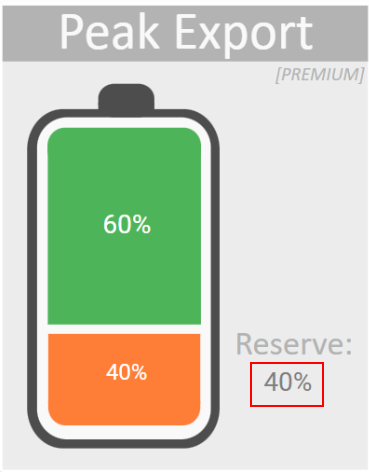
By clicking on the battery reserve percentage, you can adjust what you want to reserve and not export, should your export rate be high enough that you are able to export too much energy.
In the example above, the reserve is set on 40%, so when 40% is reached the export will stop - even if still in the middle of the 2hr export period.
Peak prep
There are two parts to the Peak Prep configuration:
- PEA Watch charge level
- Max SOC to import
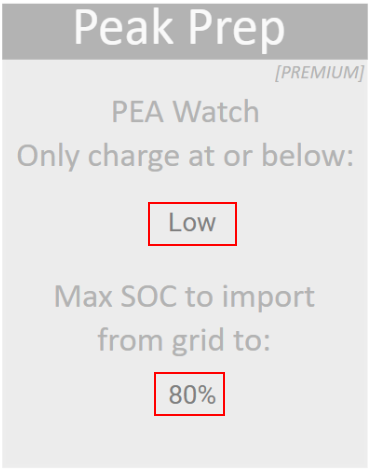
- PEA Watch. You can set the limit as to what you are willing to pay to import from the grid to charge up your battery. In the example above the limit has been configured as Low. This means that as long as the PEA Watch signal is Low or below, a planned/scheduled charge may occur if your solar won't be sufficient to charge up your battery.
The options are as below:
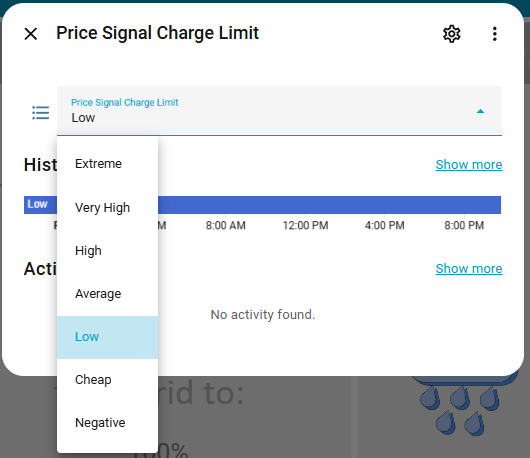
Note that these are NOT a one-to-one with Flow Power's own system which is proprietory and publicly undocumented, but Energy Manager creates categories by following the wholesale price trends, taking into considering the evening high-demand period, to gauge whether it is a suitable time to import from the grid or not. These options are calculated by the Energy Manager servers, based on the AEMO pricing for your state, and saved in an entity called input_text.price_signal and updated each 5 mins.
- Max SOC (State-of-Charge) to import from the grid. You may not want to fill your battery up completely if you don't need to, as the buy price remains the same at all times. Sometimes it is beneficial to only charge up to 100% if you can obtain free electricity through solar generation. In the above example, it is set to 80%. Note that this Max SOC is not the same as the Max SOC that you configure on the main PV dashboard, which is configured on your inverter. This is completely independent, but must be less than your inverter maximum SOC limit. The max SOC on this page is specifically defining how much energy you want to discharge during the peak period.
Weather Settings
It is often beneficial to restrict your energy export in bad weather, to keep it for yourself in case of power outages, and also because it may be more difficult to charge up your battery from the sun.
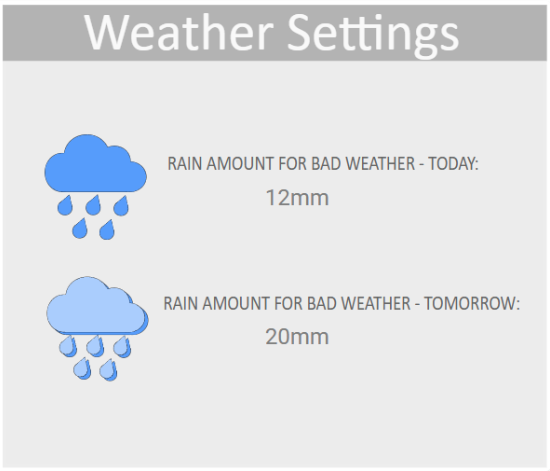
When there is bad weather, Energy Manager will be put into Bad Weather Mode. Bad weather is defined by two things:
- If the word "storm" is contained in your local BOM weather report right now
- If either of the Rain amount for bad weather - today or Rain amount for bad weather - tomorrow limits are exceeded. You can define both of these limits simply by clicking on them and entering how many mm of rain you would consider to warrant bad weather.
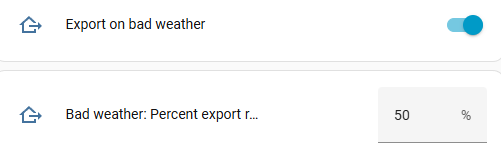
When enabled, by default this mode will restrict exports during peak hour to save the energy for self-consumption. However, from the settings cog you can Enable export on bad weather, and ignore the restriction.

Once you have enabled the Enable export on bad weather, another option is presented to you - Bad weather: Percent export rate. You can throttle your export rate by a percentage of your configured maximum export limit (also located on the same dashboard under "System Configuration"). You may want to export at 50% of your usual rate, for example, or perhaps even 25%.
Energy Manager is designed to stop importing from the grid, if it was, before the demand period starts. Demand periods have an extra charge on them that is multiplied throughout the whole month, and you do not want to import anything during these periods if you can help it.
You can go directly to the other sections of this configuration page below: