Configure your Solcast Key and Resource ID(s)
The Solcast API Key and at least one Resource ID must be entered into the PV Dashboard settings page. The option was given during the installation script launch to enter your key and resource ID(s) then, so if you have already done that then you can miss this step. Otherwise, configure it as below.
💡Obtaining your Solcast API key and Resource ID(s)
The Solcast API Key and Resource ID(s) can be obtained from Solcast website. You will be required to create an account, if you have not done so already. Link for instructions can be found here.
PV Dashboard Settings page
- Select PV from the side menu
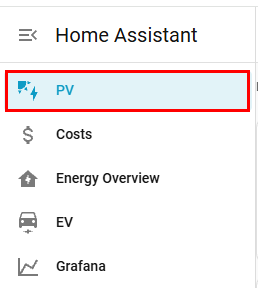
- Along the top of the page there are a series of tabs. Click on the cog icon to be taken to the settings dashboard.

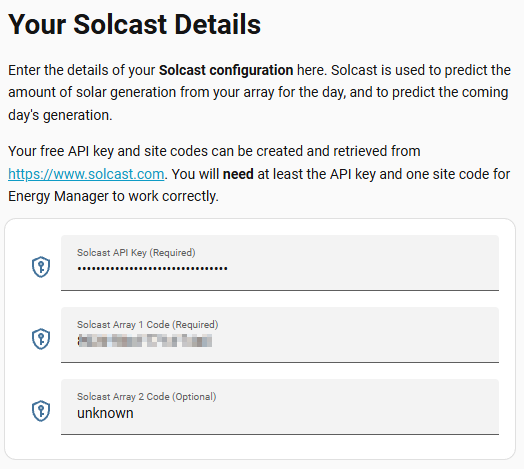
- Enter in your key in the Solcast API Key (Required) input box
- Enter in at least one resource ID in the Solar Array 1 Code (Required) input box
- If you have a second resource ID, enter it in the Solare Array 2 Code (Optional) input box. If you do not have a second array/resource ID, just leave it how it is.
ℹ️Next step